


- Joined
- Feb 2026
- Subscription
- Live
Admissions profile
Discussions

@SaniqueRowe Good evening. Thank you very much for your help. The Coda document link has resolved the row position issue I was experiencing with the row positions, as it is set to the default center row mode. I greatly appreciate your excellent resolution regarding this matter.
Many thanks also @Kevin_Lin for your kind assistance and for the superb, highly informative video concerning conditional logic. May you and @SaniqueRowe have a beautiful day!
@Kevin_Lin Good morning. Yes, I closed the page and re-opened it multiple times, but the issue still persists.
I even tried following these steps on my iPad instead of my Windows 10 computer to see if doing so would reset the expanded row back to its original center row position.
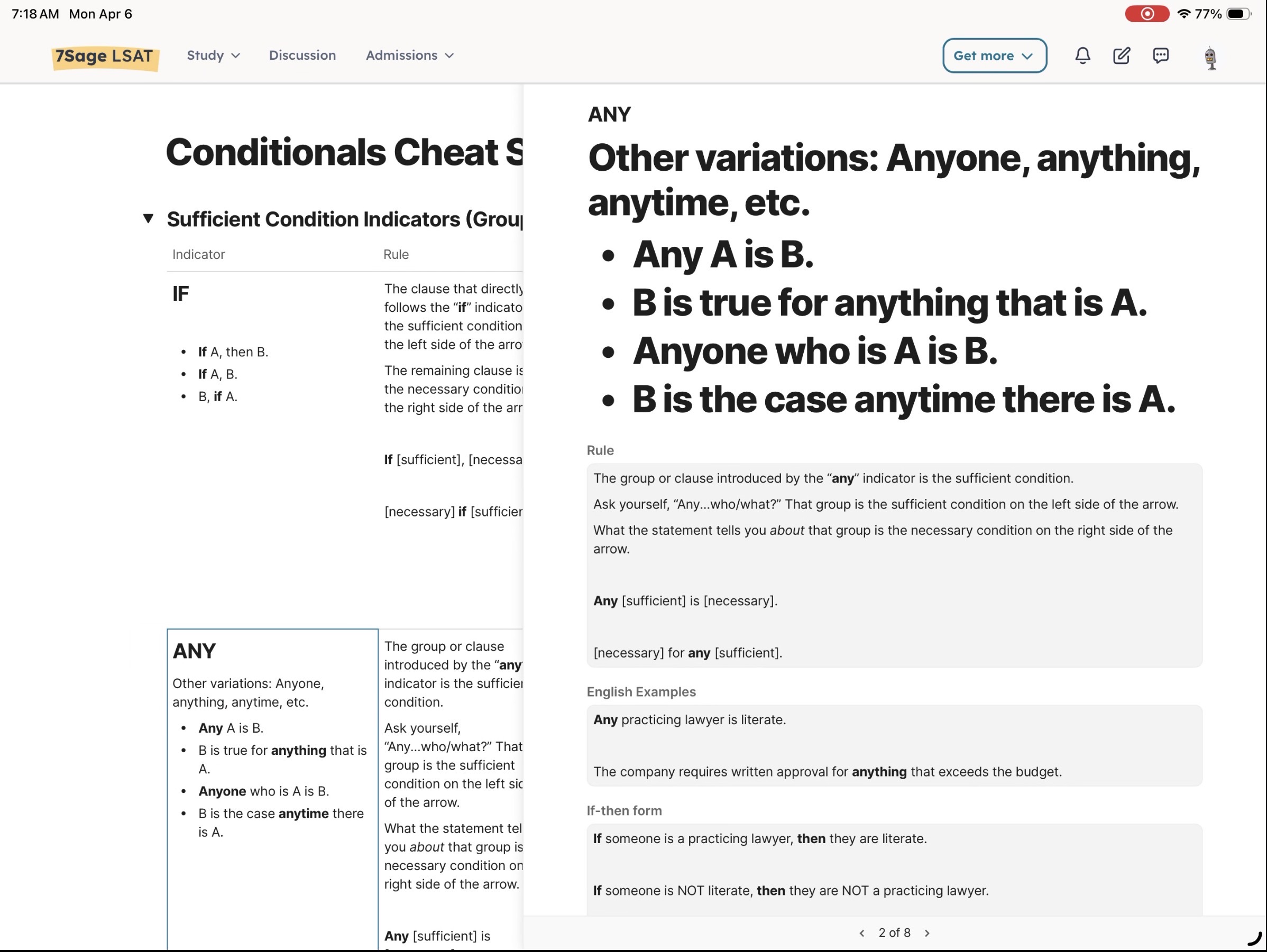
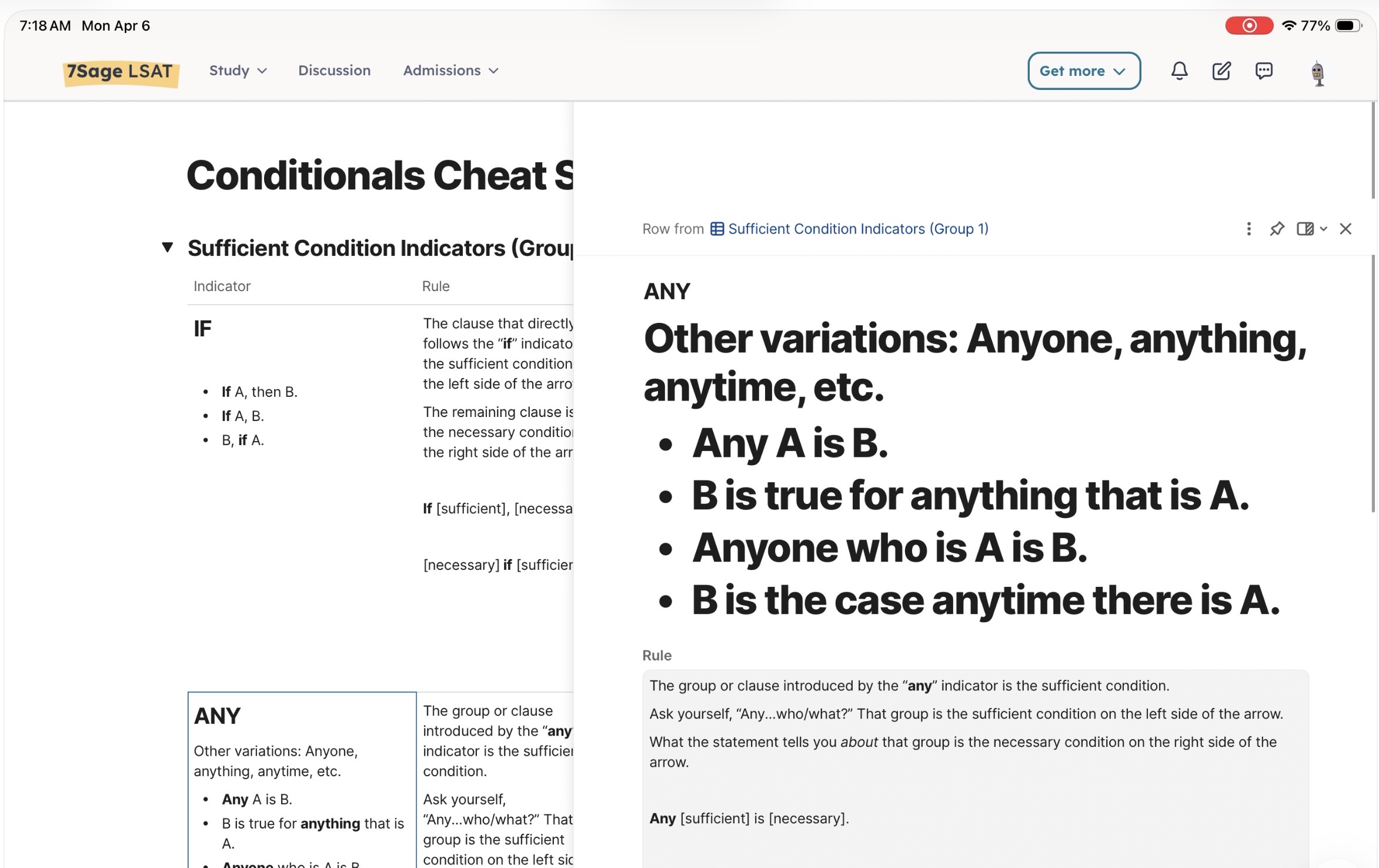
But a major observation I would like to share is that when looking into this row position issue on my iPad, I entered into the “Right” row position as I originally did on my Windows 10 computer, and, unlike on my computer, I can scroll up on the expanded row to see the row position buttons.
However, I cannot actually click any of the buttons to exit the “Right” row position, as they become hidden underneath the 7Sage main navigation panel (the one with the “Study,” “Discussion,” “Admissions,” “Get More,” links. I would upload a screen recording of this problem, but cannot do so as the platform won’t allow me to.
I have instead uploaded two screenshots taken with my iPad to better illustrate the issue I am experiencing. Please note that the first image shows the regular view (without scrolling) that omits the buttons to exit the “Right” row position and return to the “Center” orientation.
In the second image, I can see the button to reset the row position, but only while scrolling upwards and holding my finger down on my screen. After I let go of the scroll, the buttons to resize the row positions disappear back underneath the primary 7Sage navigation panel with the Study, Discussion, and Admissions menus, and I am once again unable to access them. Furthermore, I am unable to click any of the row position modes despite being able to scroll up and see them because I must let go of the screen after scrolling up, and letting go of the screen only results in the buttons disappearing back underneath the 7Sage menu panel.
Thank you again for your kind consideration and continued help in the above matter. Have a lovely day.
Hello,
I have a question regarding the Conditional Logic Cheat Sheet, which I accessed using my Windows 10 computer.
After accessing the link, I clicked the "Expand row" button, which loads any particular row in the Cheat Sheet as a whole page.
Upon expanding a row, I then hovered over the three vertical dots near the top right of the page and brought up the "Row position" menu, where I subsequently entered into the "Right" orientation mode.
However, I would like to return to the original "Center" row position but am unable to exit the "Right" row position mode because the buttons to change the row position are no longer visible when the "Right" mode is enabled.
I would greatly appreciate any help regarding this issue, as the original "Center" row position is my preferred orientation mode.
Thank you for your time and have a nice day.
The PrepTest Equivalent score is one of the most useful statistical features that 7Sage provides!
While I agree that the estimate may be slightly "fuzzier" for a drill than for a full-length practice test, it is nonetheless a very informative metric for me to gauge my performance by tracking my score consistency when doing individual LSAT practice sections and drills. Also, when I first began my LSAT studies, I noticed that my PrepTest Equivalent score would sometimes vary even if my performance was the same (percentage-wise) as another previous practice session. This essential observation helped me understand that the score variation depends on the difficulty distribution, enabling me to specifically target my high priority categories for questions with increased difficulty levels, which used to be more challenging for me to navigate.
In my opinion, the PrepTest Equivalent score is one of the most critical features on the 7Sage platform. For this reason (among others), 7Sage is my main and preferred LSAT prep platform because all the other study platforms that I have used don't provide a similar performance estimate, making it more tedious for me to measure my progress. Please always keep the PrepTest Equivalent score🙏 Many thanks to the 7Sage team for your dedication to providing such excellent LSAT prep services and for your kind help!